Web Dashboard
The web dashboard provides a real-time view of the labgrid coordinator’s state, including exporters, places, resources, and reservations.
Access the dashboard at http://localhost:3000 after starting the Docker
compose stack (see Coordinator Setup). Most pages are viewable without
signing in; acquiring/releasing places, creating reservations, opening a
console, and managing users require an account — see Authentication & User Management.
Dashboard Page
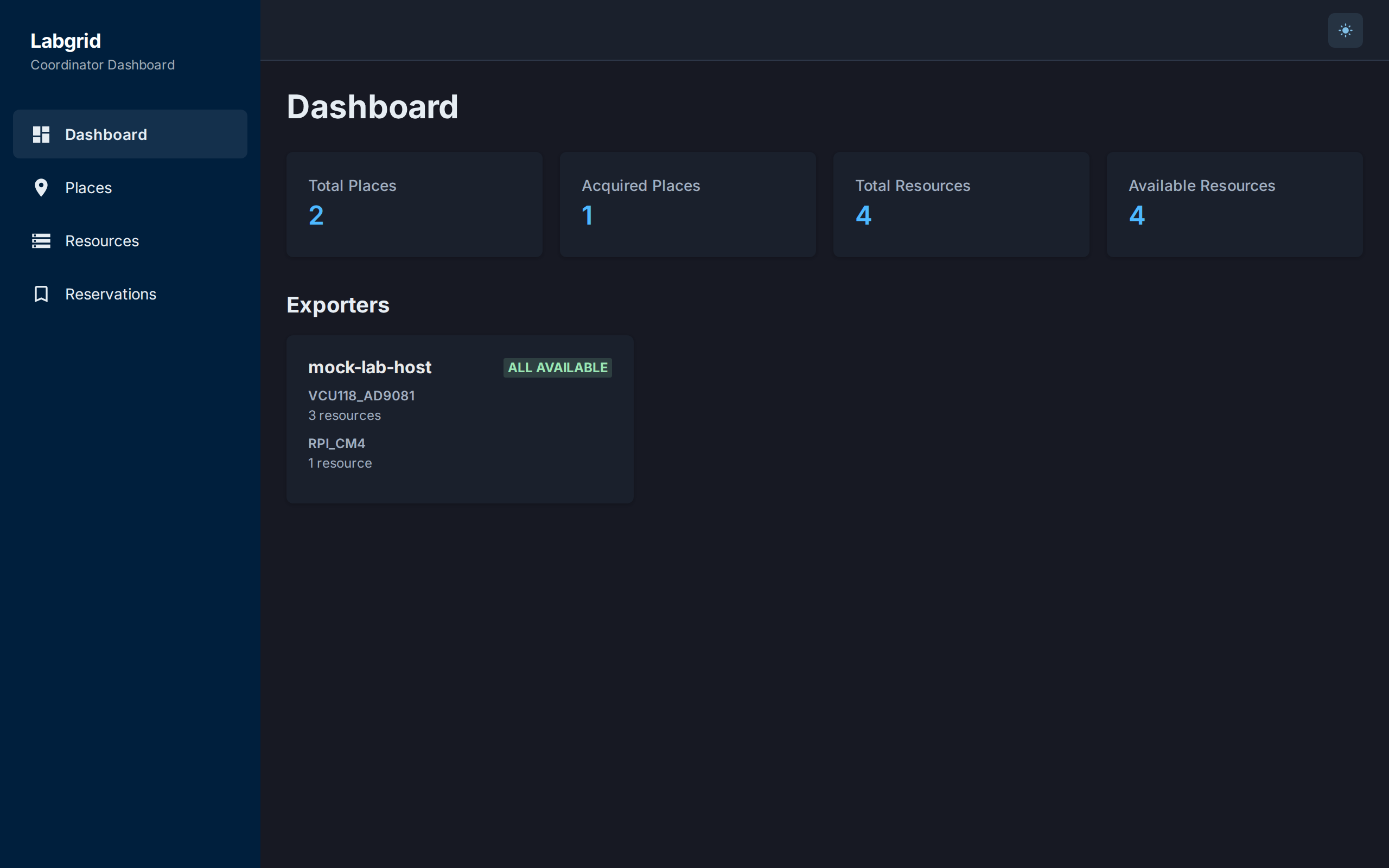
The main dashboard shows:
Summary cards: Total places, acquired places, total resources, available resources
Exporter health grid: A card for each connected exporter showing its resource groups and availability status (green/yellow/red badges)
Places Page
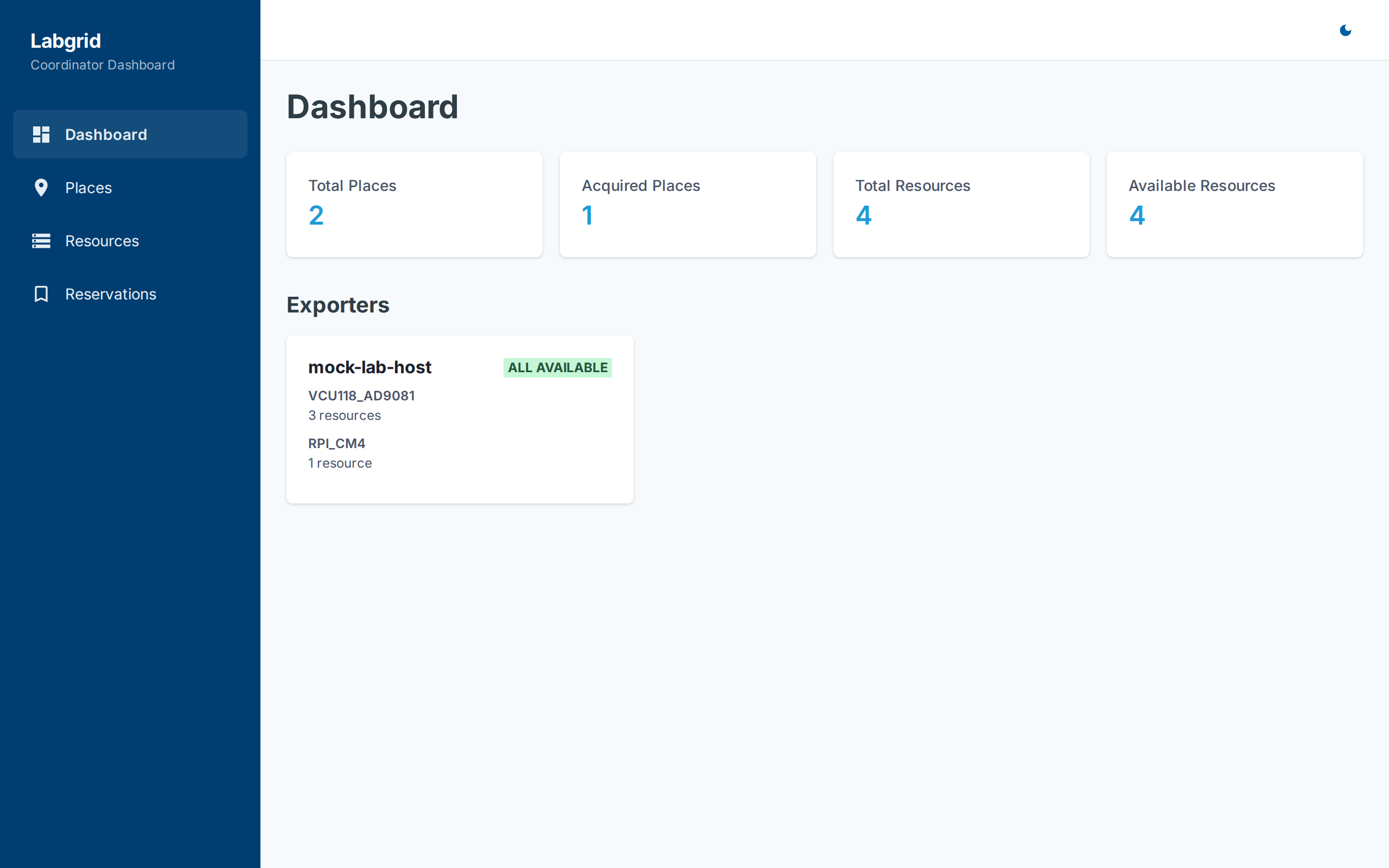
The places page provides full place management:
Table view: Name, tags, match count, acquired by, and action buttons
Expandable rows: Click a row to see full match patterns, acquired resources, aliases, and comments
Actions: Acquire/Release toggle, delete
Create Place: Modal dialog for creating new places
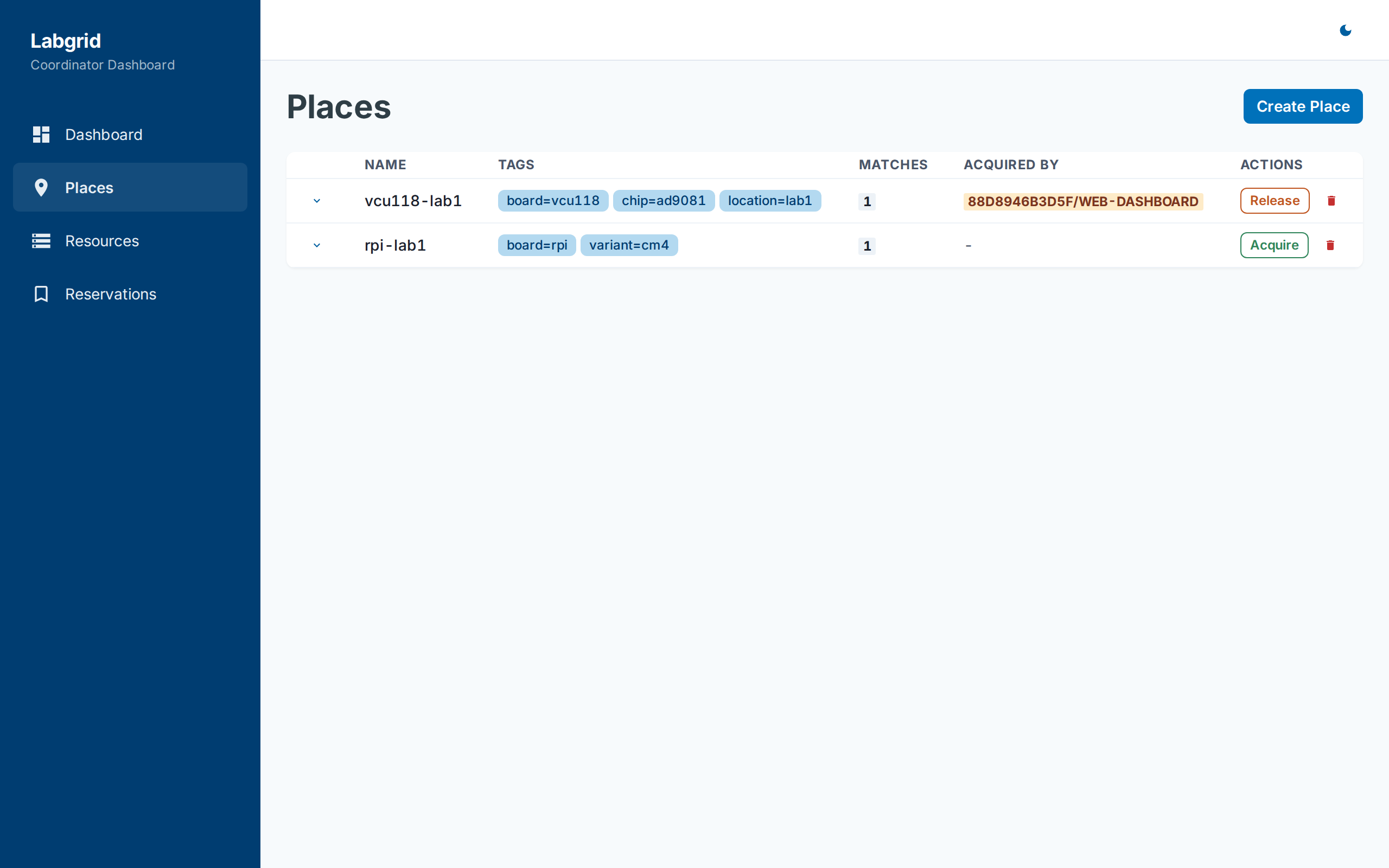
Clicking a row expands the detail panel, showing match patterns and acquired resources:
Resources Page
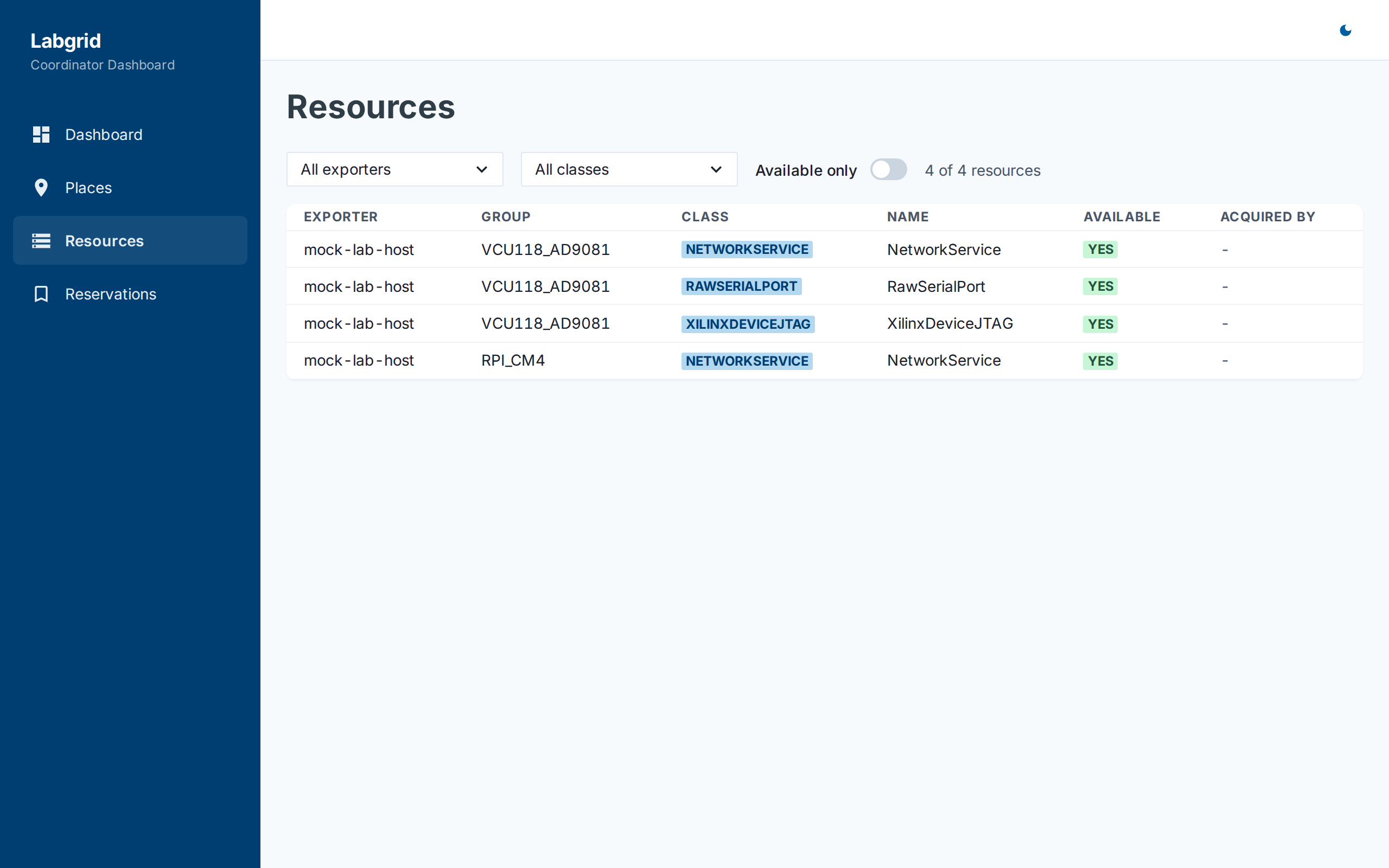
The resources page shows all resources from all connected exporters:
Filterable table: Exporter, group, class, name, availability, acquired by
Filter controls: Dropdown filters for exporter and class, toggle for available-only
Real-time updates: Resource availability changes are reflected immediately via WebSocket
Reservations Page
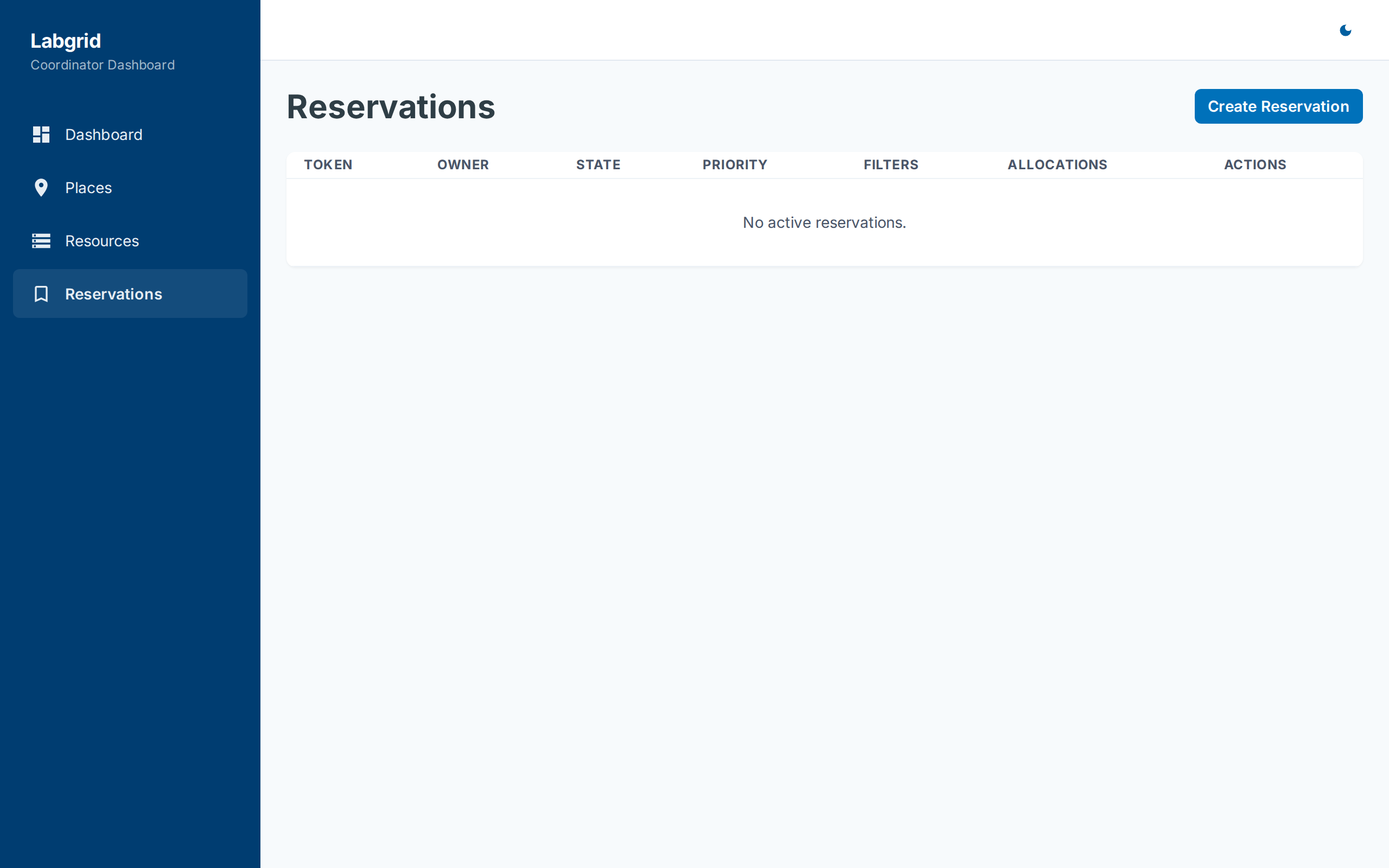
The reservations page manages resource reservations:
Table: Token, owner, state, priority, filters, allocations
Create Reservation: Modal form with tag-based filter configuration and priority setting
Cancel: Cancel active reservations
Place Creation Wizard
/places/new walks through creating a place in four steps instead of a
single form:
Name - validated for format and checked for uniqueness
Matches - pick exporter resource groups/classes to match into the place
Tags - required tags (board location, carrier, daughter board) plus any custom tags, and an optional comment
Review - confirm before submitting
If a later step fails, the wizard rolls back the place it already created so you don’t end up with a half-configured place.
Topology Page
/topology renders an interactive graph (exporters -> resource groups ->
places) showing which resources are matched into which places:
Dashed edges are unmatched; solid/animated edges are live and acquired
Filter by name (reflected in the URL as
?focus=), “Mine only”, hide offline exporters, hide places with no live matchesClicking a node opens that exporter’s or place’s detail page
Statistics Page
/statistics provides usage analytics over a selectable 7/30/90-day
window, across three tabs:
Overview: 24h event count, average acquisition duration, busiest hour, most-used place, average uptime
Places: session count and utilization per place
Resources: per-exporter/resource uptime bars and online/offline hours
Event Log
/events is a paginated audit log of coordinator activity - places
created/acquired/released/deleted, resources coming online/offline or being
acquired/released, and reservations created/cancelled. Filter by event
type; 50 events per page.
Console
Opening a place’s console resource (/places/:name/console/:resource)
gives a full-screen interactive terminal (xterm.js) over a WebSocket
connection to the resource’s serial/console stream. Console sessions are
always recorded (see below); a Reconnect button re-establishes a dropped
connection.
Recordings & Playback
/recordings lists every recorded console session (start time, place,
resource, duration, size, and end reason). Selecting one opens
/recordings/:id, which replays the session with the asciinema player.
Admins can delete recordings from the list.
Exporter Detail
/exporters/:exporterName shows one exporter’s resource groups, each
resource’s class/availability/owner, and expandable connection parameters
(passwords are hidden). A sidebar lists places that reference the exporter
and any “orphan” resources - live resources not matched into any place -
with a link into the Topology page.
Help Page
/help is a static in-app reference: an explainer of how exporters,
resources, places, and matches fit together, a link into Topology, and a
step-by-step guide to writing exporter resource YAML, available resource
classes, validating configs, starting an exporter, and creating a place.
Real-Time Updates
The dashboard connects to the API via WebSocket at /api/ws. All state
changes from the coordinator (place updates, resource availability changes,
exporter connect/disconnect) are streamed to the browser in real time.
If the WebSocket connection drops, the dashboard automatically reconnects after 3 seconds.
Color Mode
The dashboard supports both light and dark modes. Toggle via the icon button
in the top-right header. The color scheme uses Analog Devices brand colors
(ADI blue #0071ba) throughout.